
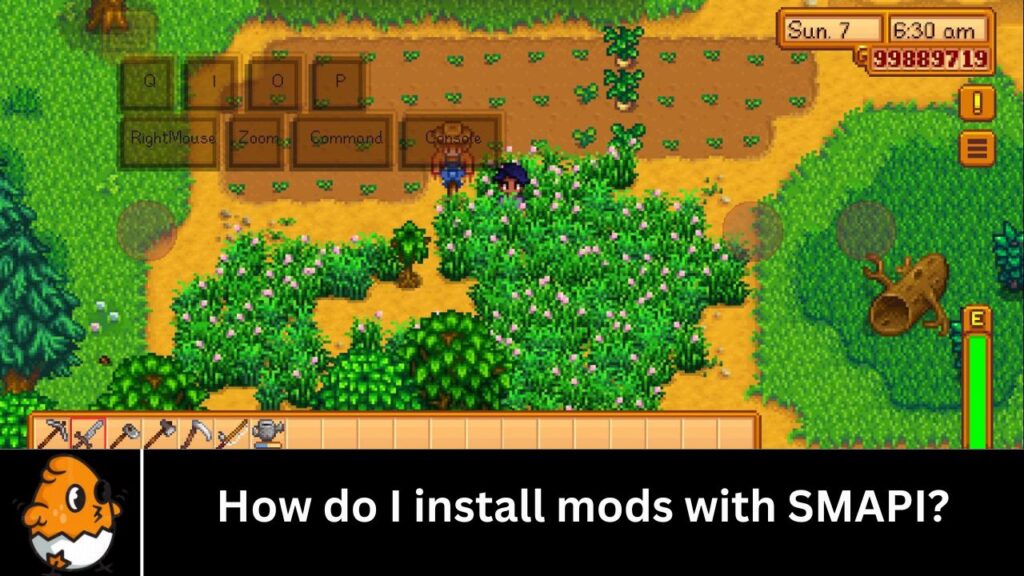
In the bustling world of Stardew Valley, where farming, friendships, and adventures await, players often seek to enhance their gaming experience through mods. SMAPI, or the Stardew Valley Modding API, is crucial in this pursuit. It bridges the game and user-created mods, allowing players to easily customize and expand their gameplay beyond the vanilla experience.
SMAPI serves as a backbone for the vibrant modding community of Stardew Valley, enabling the creation and installation of a wide variety of mods. From simple aesthetic changes to complex gameplay overhauls, SMAPI empowers players to tailor their game to suit their preferences and playstyle.
One of the key reasons for SMAPI’s importance in modding Stardew Valley is its ability to streamline the mod installation process. Unlike manual installation methods, which can be cumbersome and prone to errors, SMAPI provides a user-friendly interface for managing mods. This simplifies the process for players, making it easier to experiment with different mods and customize their game without fear of damaging the game files.
Overall, SMAPI plays a crucial role in enhancing the replay value and enjoyment of Stardew Valley for players. Its user-friendly nature and compatibility with a wide range of mods make it an essential tool for anyone looking to delve deeper into the world of Pelican Town.
System Requirements
Before you begin, ensure your system meets the following requirements:
- Operating System: Windows, macOS, or Linux
- Stardew Valley: Latest version of the game installed
- SMAPI: Latest version of SMAPI
Installing SMAPI
To install SMAPI, follow these steps:
Download SMAPI:
- Visit the official SMAPI website.
- Download the installer for your operating system.
Run the Installer:
- On Windows, run the .exe file.
- On macOS, run the .command file.
- Extract the .tar.gz file on Linux and run the install script.
Follow the On-Screen Instructions:
- The installer will guide you through the installation process.
- Choose the directory where Stardew Valley is installed when prompted.
Verify Installation:
Launch Stardew Valley through the SMAPI launcher.
Check the SMAPI console window for any errors or messages.
Finding Mods for Stardew Valley
There are several websites where you can find mods for Stardew Valley. The most popular are:
- Nexus Mods
- ModDrop
- Chucklefish Forums
When downloading mods, ensure they are compatible with the latest SMAPI and Stardew Valley versions.
Installing Mods with SMAPI
Once you have SMAPI installed and mods downloaded, follow these steps to install and activate your mods:
Locate Your Mods Folder:
- Navigate to your Stardew Valley installation directory.
- Open the Mods folder. If it doesn’t exist, create it.
Extract Mod Files:
- Most mods come in .zip or .rar files.
- Extract the files to the Mods folder. Each mod should have its subfolder within Mods.
Configure Mods (if necessary):
- Some mods come with configuration files.
- Open these files with a text editor to adjust settings as needed.
Launch Stardew Valley via SMAPI:
- Use the SMAPI launcher to start the game.
- Check the SMAPI console for any errors. If there are issues, revisit the mod’s page for troubleshooting tips.
Troubleshooting Mod Installations
If you encounter problems when installing or using mods, consider these steps:
Check Compatibility:
- Ensure the mod is compatible with your version of Stardew Valley and SMAPI.
Read Mod Descriptions:
- Mod authors often include essential information in the description or README file.
Update Mods:
- Ensure all your mods are up to date with the latest versions.
Check for Conflicts:
- Some mods may conflict with each other. Please turn off all mods and enable them to identify conflicts individually.
Seek Help:
- Visit the modding community forums or the mod’s page for assistance.
Managing Your Mods
Properly managing your mods can prevent many issues and enhance your gameplay experience. Here are some tips:
Use a Mod Manager:
- Tools like Vortex (from Nexus Mods) can help manage your mods efficiently.
Keep a Backup:
- Regularly back up your game saves and mods folder.
Organize Mods:
- Keep your mods folder organized with clear subfolder names.
Monitor Updates:
- Regularly check for updates to both SMAPI and your mods.
Best Practices for Modding
Following best practices ensures a smooth modding experience:
Read Documentation:
- Always read the documentation provided by mod authors.
Test Mods Individually:
- Test each new mod individually before adding it to your main game.
Avoid Overloading:
- Too many mods can cause performance issues. Be selective about which mods you install.
Stay Informed:
- Follow modding communities and stay updated on the latest developments.
Advanced Tips for SMAPI Modding
Using Mod Managers: Mod managers are useful tools for organizing and managing mods, including those used with SMAPI. They help you easily enable, disable, and update mods without manually handling files. Popular mod managers like Vortex and Mod Organizer 2 support SMAPI mods, making tracking your modding setup easier.
Creating Custom Mod Folders: Sometimes, you may want to organize your mods into custom folders for better management. This can be particularly helpful if you have a large number of mods. By creating custom folders and placing mods with similar functions or themes together, you can make it easier to find and manage them within SMAPI.
Mod Load Order and Its Importance: Mod load order refers to the sequence in which mods are loaded by SMAPI and the game. The order in which mods are loaded can affect their functionality and compatibility with each other. Understanding mod load order is important to prevent conflicts and ensure that mods work as intended.
In SMAPI, mods are typically loaded in the order specified by the manifest.json The file of each mod. Mods higher in the load order will override conflicting changes made by mods lower in the order. This makes load order management crucial, especially when using multiple mods that modify the same game files.
To manage mod load orders, you can use tools like LOOT (Load Order Optimization Tool) to automatically sort your mods based on compatibility rules. Additionally, many mod managers provide features for manually adjusting load order to resolve conflicts and ensure mods work harmoniously.
In conclusion, utilizing mod managers, creating custom mod folders, and understanding mod load order are advanced tips that can enhance your modding experience with SMAPI. These practices help streamline the modding process, improve organization, and reduce conflicts, allowing you to enjoy a more stable and customized Stardew Valley gameplay.
Frequently Asked Questions (FAQs)
What is SMAPI, and why do I need it?
SMAPI, or the Stardew Modding API, is a framework that allows you to easily install and manage mods for Stardew Valley. You need SMAPI to run mods because it provides the necessary infrastructure for mods to function within the game.
How do I update SMAPI?
To update SMAPI, you can download the latest version from the SMAPI website or use a mod manager that supports SMAPI to update it automatically. It’s important to keep SMAPI updated to ensure compatibility with the latest mods and game updates.
Can I use SMAPI with the Steam version of Stardew Valley?
Yes, you can use SMAPI with the Steam version of Stardew Valley. SMAPI is compatible with both the Steam and GOG versions of the game.
Do I need to reinstall mods after updating SMAPI?
In most cases, you will not need to reinstall mods after updating SMAPI. However, it’s always a good idea to check the compatibility of your mods with the new SMAPI version and update them if necessary.
How do I know if a mod is compatible with my version of Stardew Valley?
Most mods will specify the version of Stardew Valley they are compatible with in their description or documentation. You should always check this information before installing a mod to ensure compatibility.
What should I do if a mod causes my game to crash?
If a mod causes your game to crash, you should first check the mod’s description or documentation for any known issues or compatibility issues. If the mod author has provided a solution, follow their instructions. If not, try disabling the mod and see if the issue persists. You can also check online forums or communities for help and advice.
How can I uninstall SMAPI and revert to the vanilla game?
To uninstall SMAPI and revert to the vanilla game, you can simply delete the SMAPI files from your Stardew Valley directory. This will remove SMAPI and any mods you have installed. If you want to keep your saved games, make sure to back them up before uninstalling SMAPI.
Conclusion
Installing mods with SMAPI is a straightforward process that can significantly enhance your Stardew Valley experience. Following this guide, you can easily customize your game, adding new features, improving gameplay, and making farming adventures more enjoyable. Remember to always back up your data, keep your mods updated, and stay engaged with the modding community for the best experience. Happy modding!